



For about five years I’d wanted to give my boat a brain. It’s an older boat, and like a lot of older boats it came with almost no way to monitor what was happening on board — no instruments worth trusting, no networked electronics, and no chart plotter. I’d been getting by on a compass and whatever I could pull up on my phone. What finally changed that was a device about the size of a hockey puck: the Orca Core 2.
The Core 2 is a smart hub that plugs into your NMEA 2000 system and wirelessly pushes all of your boat’s data to whatever device you want. It’s a high-performance wireless gateway that doubles as its own GPS and compass, so it isn’t only relaying information — it’s generating navigation data too. You mount it with a clear view of the sky, plug it into the network, download the free Orca app, and your vessel’s data shows up on your iPhone, iPad, or Android device. You can read the full specs on Orca’s Core 2 page; what I want to walk through here is what it actually takes to put one on an older boat.
Why a Hub Instead of a Chart Plotter
The idea that sold me is simple: I don’t have to be at the helm to know what my boat is doing. On an older boat with no way to monitor any of this, that’s a big deal — and instead of bolting a fixed plotter to the dash, this one little hub gives me every navigation instrument I need on my iPad or phone.
First I Had to Give the Boat a Nervous System
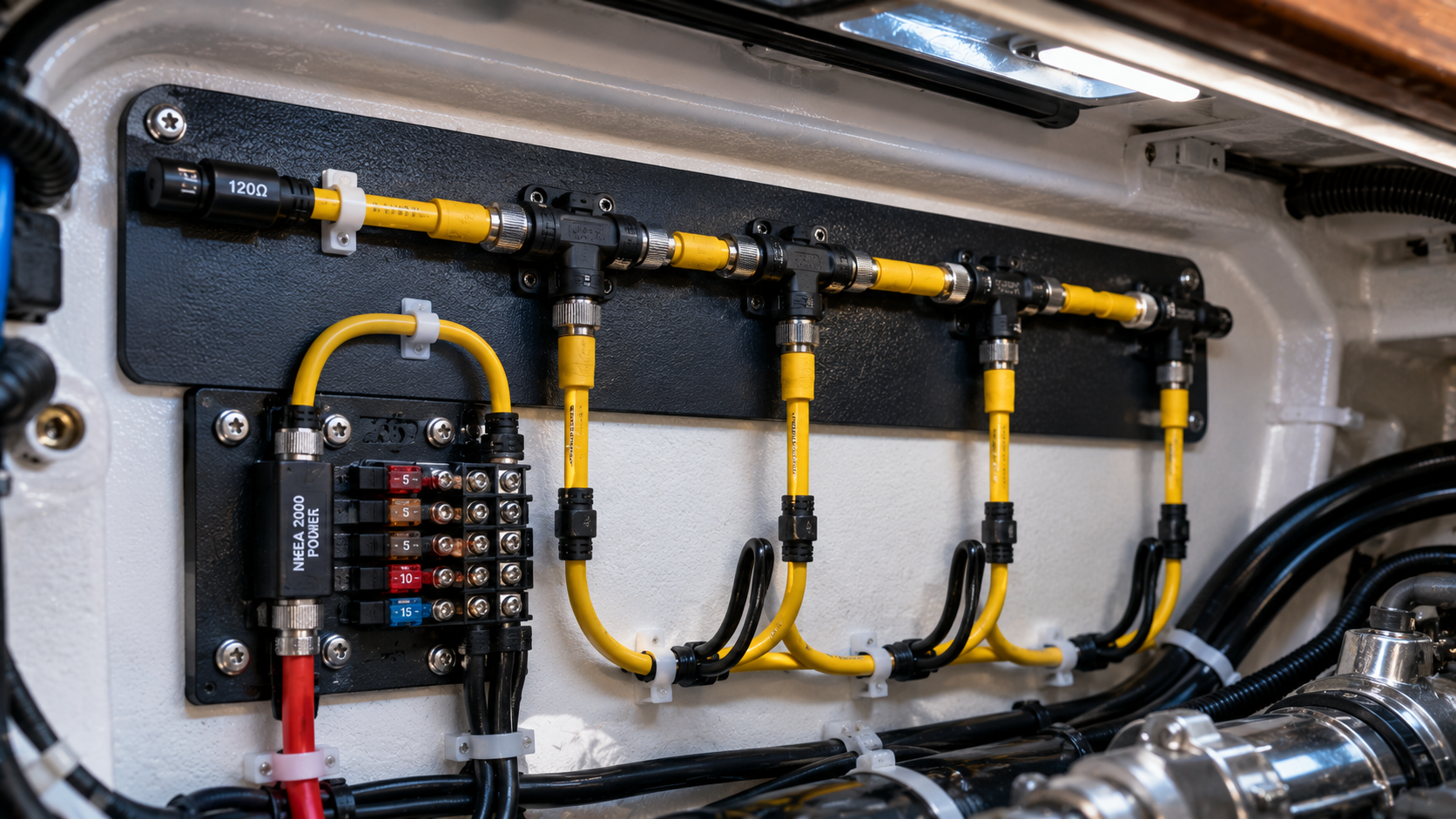
Before I could install the brain, the boat needed a nervous system, because it didn’t have an NMEA 2000 network at all. I wired the full network so I could add more electronics down the road. I picked up a Garmin starter kit from Defender Marine. NMEA 2000 is the industry-standard plumbing for marine electronics — a series of ports and cables that let different brands share data on one network, whether that’s to a plotter or, in my case, wirelessly to a phone through the Core 2.
I added an extra T-connector for future ports and mounted it at the junction where my power and transducer cables already met. I crimped ring terminals onto the power cable, wired positive and negative to a switch on my breaker panel, and plugged the yellow power lead into the backbone. The kit includes a shield drain you trim at the cable end to cut electrical noise. One thing worth saying twice: kill the power at the battery before you touch any of this wiring.
Pulling In the Engine Data
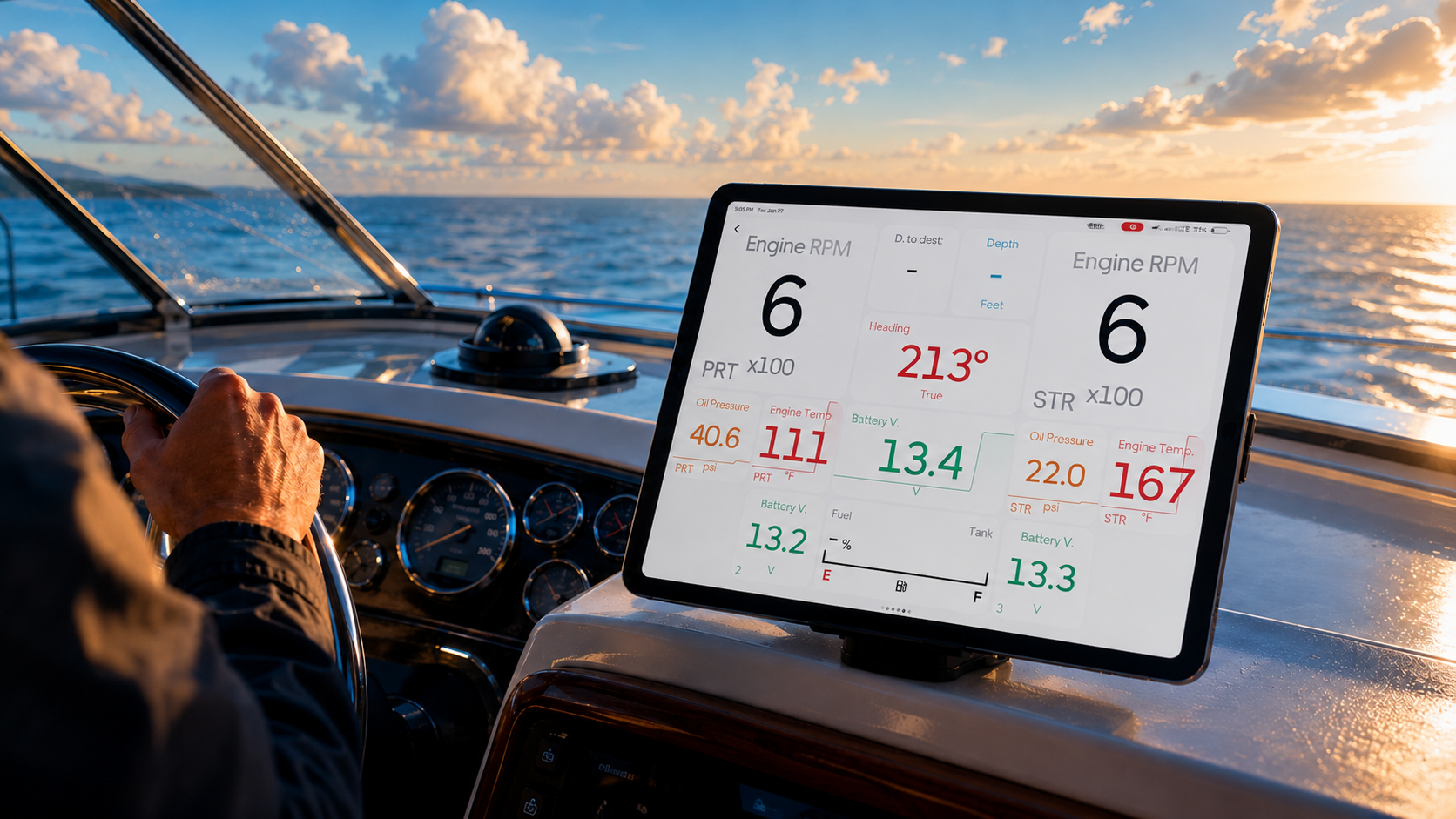
With the backbone live, I ran cables to my SmartCraft Vessel View displays and my transducer so the Core 2 would have something to show. This is the part that surprises people: you can get full engine data in the Orca app, even on old engines. Mine are from 2004. All it took was running the cable from the Vessel View display into the backbone, and now engine one and engine two report straight to my phone.
Installing the Core 2
The unit comes with two adapters, and it’s easy to assume you get to pick between them — but you don’t. The five-pin female connector is the one you use for the NMEA 2000 network, regardless of your setup. The four-pin male connector is for a radar, not a power-only option, so unless you’re wiring in radar, it isn’t the one you want. The five-pin is the standard install.
You can mount it two ways: drill a roughly one-inch hole and thread the unit through with its weather barriers, or pull the weather grommet and flush-mount it on a radar arch or similar flat surface. Orca recommends keeping it at least a meter from any compass or electronics so it doesn’t interfere with the built-in GPS and compass.
That meter rule was my problem. I don’t have a radar arch, and there’s no spot near my helm far enough from everything else. So for now I did something admittedly unglamorous: I put the Core 2 back in its box, poked a hole for the cable, and set it under the hardtop. The long cable lets me move it around over the next couple of weeks to find the best permanent home before I commit to drilling.
Setting Up the App
I flipped the switch, got a green light, and that was it. The Orca app is free on iOS and Android, and the setup was one of the easiest I’ve run. It recognized the Core 2 immediately, asked to pair, and had me connected within seconds without ever leaving the app. With everything on the backbone, my iPad showed engine data right away — it knew I had two engines, and the settings list every device on the network. The one step left, once the Core 2 is mounted for good, is to take it out on a flat, calm day and calibrate the compass and GPS so it knows which way you’re pointing.
The Verdict
I’d recommend this without hesitation. Running my whole boat off an iPad still feels a little unreal for a vessel this age. And this was only step one — I went on to install their waterproof tablet and rebuild my entire dash around it, which I covered in the Orca Display 2 writeup. What should have been a quick install turned into a full afternoon, mostly because I was filming every step, so you’ll almost certainly finish yours faster than I did.
If you’re sorting out the power side of your build too, here’s how I added solar panels to go off-grid.